curatorial
FeaturesGuidesPricingFAQ
Sign inStart free

Getting the most from Curatorial

Notebooks guides.notebooks.hero.title_accent

A focused room for one question. Pull in the sources that matter, chat with them until you understand them, and turn what you learn into a briefing, an FAQ, or a timeline.

6 min readCore

When you want to go deep on one thing

Your library is everything; a notebook is the handful of sources you're wrestling with right now. Where the Assistant ranges across your whole collection, a notebook draws a tight boundary — just these sources, this question — so the conversation and the outputs stay grounded in exactly what you chose. It's the difference between a library and a reading desk.

01

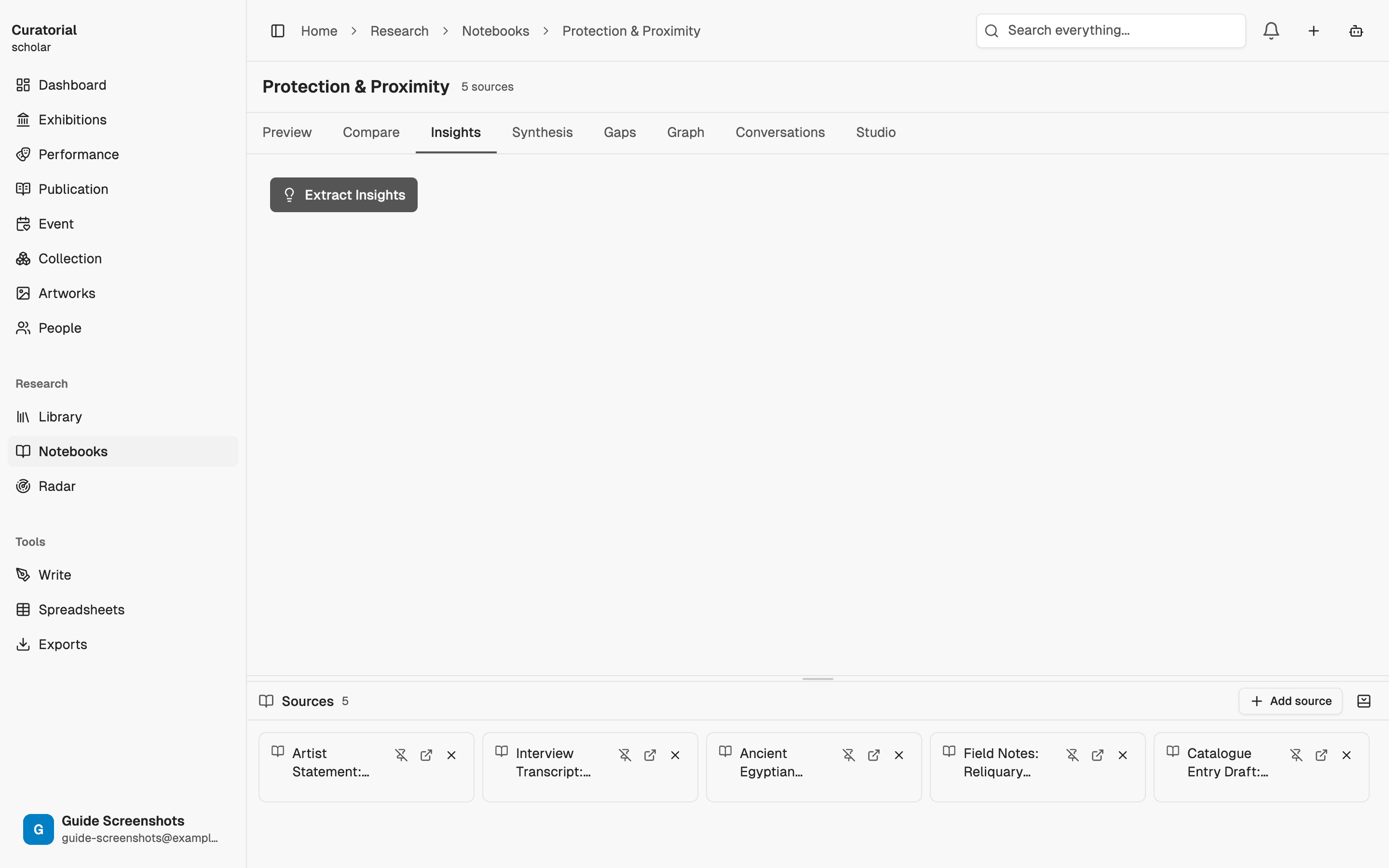
Create a notebook and give it sources

Start a notebook and add the sources it should reason over. You can seed it straight from a topic or a selection of materials, so a notebook can begin already stocked with everything relevant instead of empty. The sources you add are its whole world — the notebook won't wander outside them.

A notebook with its sources added

Screenshot

Tip

Free plans include one notebook — enough to see how it works. Pro lifts the limit so you can keep a separate notebook per thread of research.

02

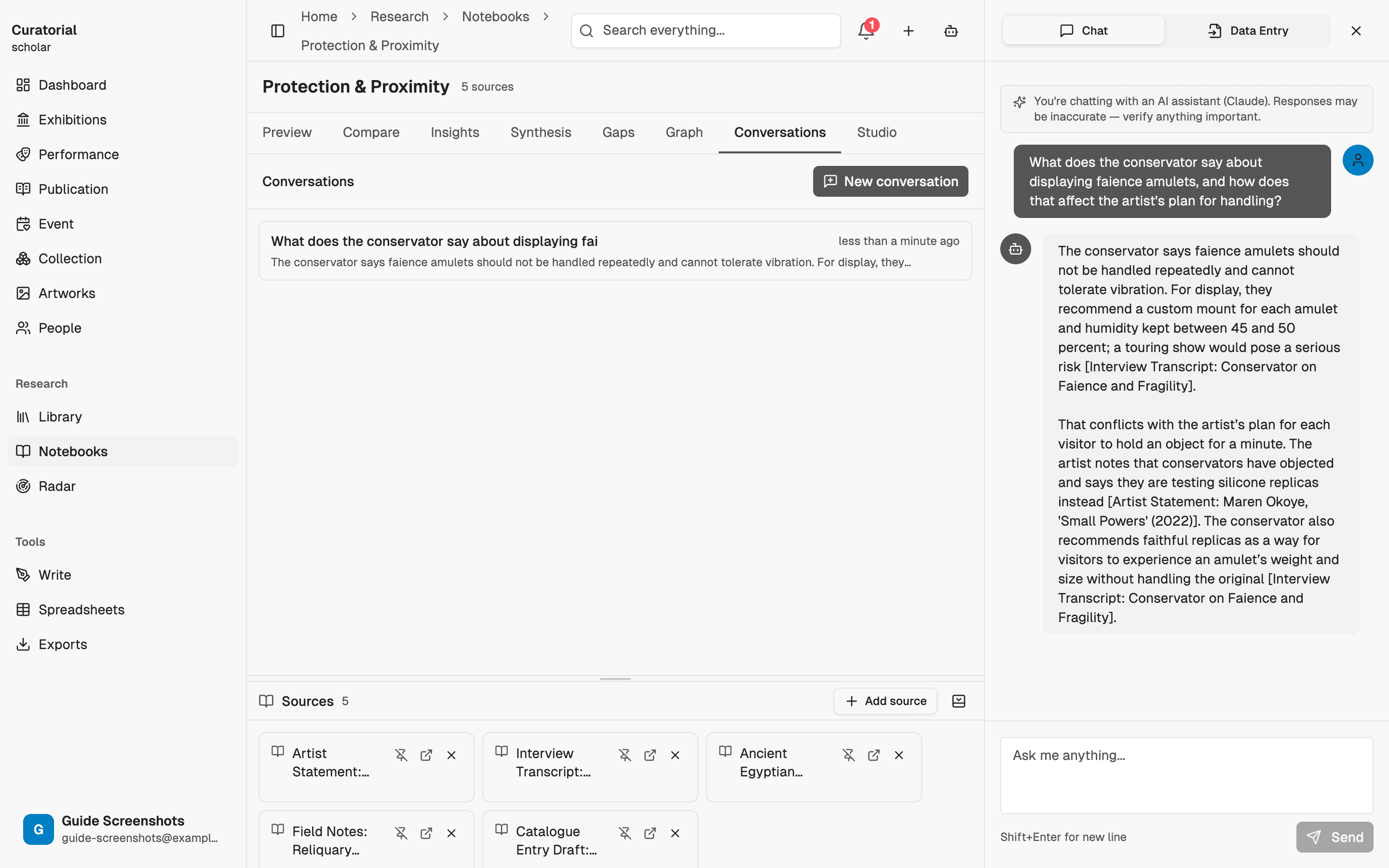
Chat with your sources

Ask questions and get answers drawn only from the notebook's sources, with the passages they came from. Because the scope is tight, the answers are tight: this is the mode for genuinely understanding a small set of difficult texts — reading with a knowledgeable interlocutor rather than reading alone.

Grounded, cited chat inside a notebook

Screen recording (~15s)

03

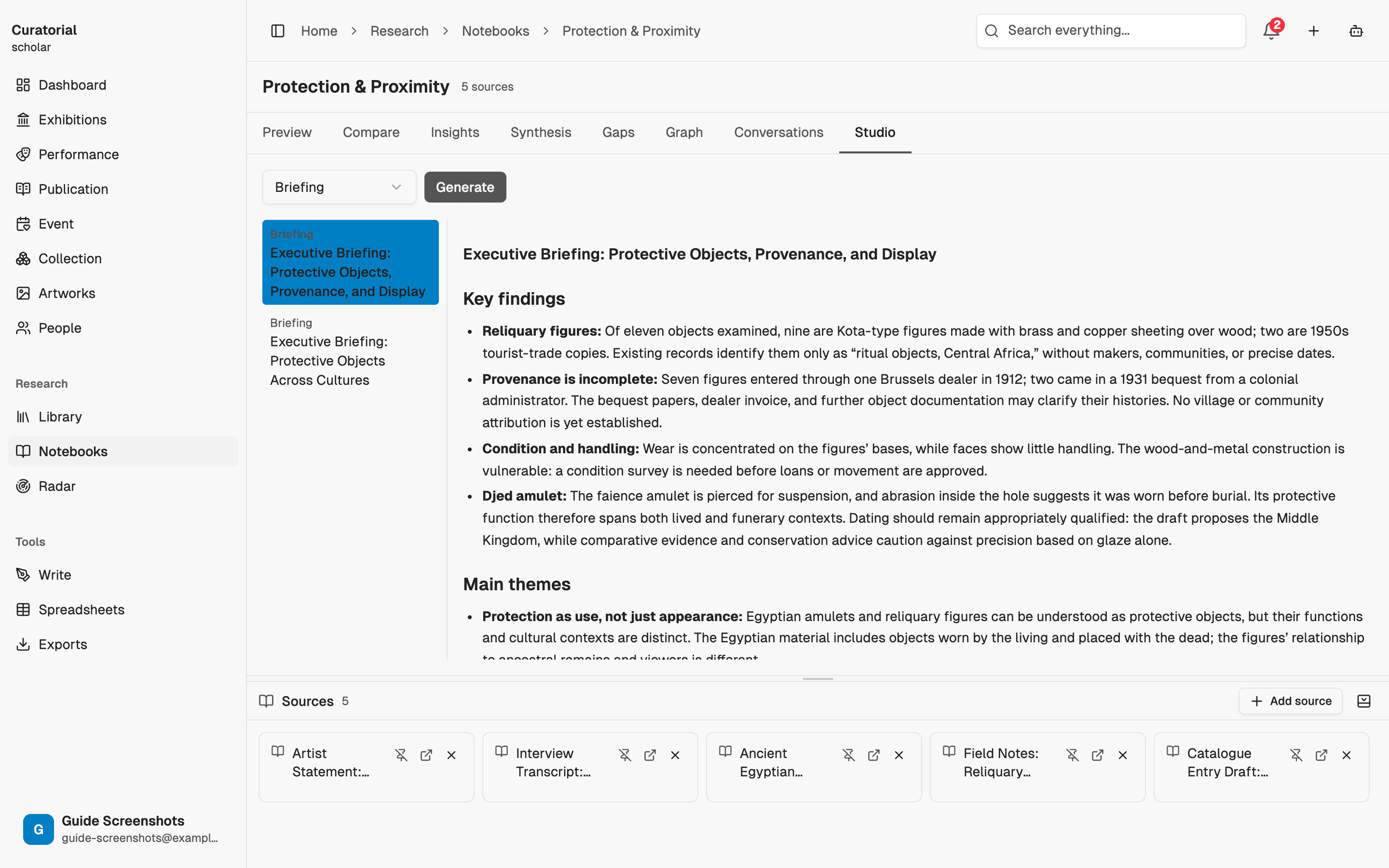
Generate a Studio artifact

When you're ready to consolidate, the Studio turns the notebook into a usable document — a briefing that summarises the whole set, an FAQ that anticipates the obvious questions, or a timeline that orders events across the sources. Each is generated from your notebook's contents, so it's specific to your material, not a template.

Studio artifact options: briefing, FAQ, timeline

Screenshot

Tip

Studio artifacts are a Pro feature. The briefing is the fastest way to hand a collaborator the gist of a source set without making them read all of it.

04

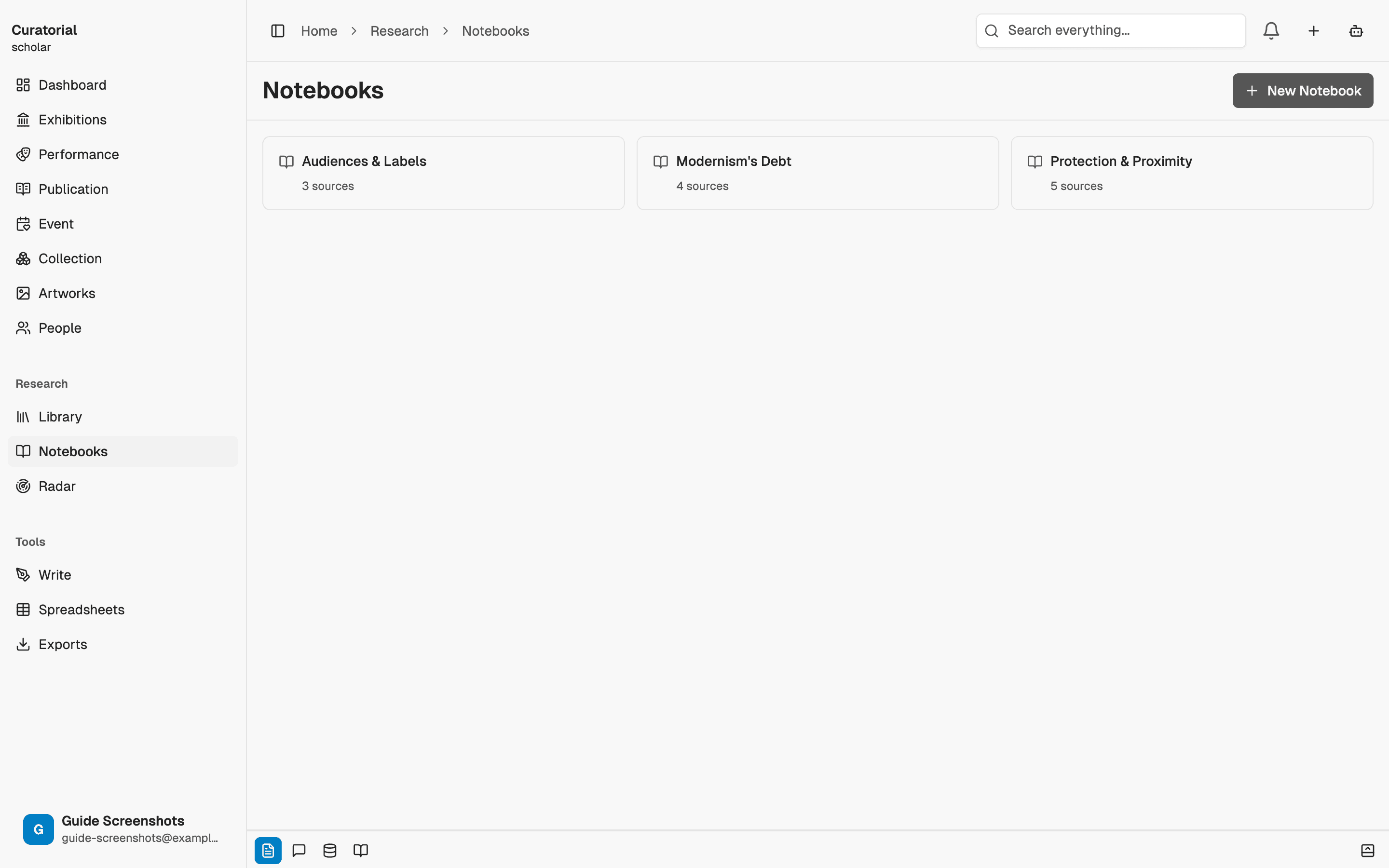
Keep a notebook per thread

Notebooks are cheap to keep and easy to return to. Run one per line of inquiry — one for the artist's biography, one for the critical reception, one for the historical context — and each stays a clean, self-contained conversation you can pick back up weeks later without losing the thread.

Several notebooks, one per research thread

Screenshot

Notebook vs. the Assistant

Reach for the Assistant when you want to range across your whole library and follow wherever a thought leads. Reach for a notebook when you want the opposite — a fixed set of sources, a bounded question, and outputs you can trust to be built from only those. Same grounded-answers idea, deliberately different scope.

Note

A notebook only knows the sources you put in it. That constraint is the feature — it’s what keeps the answers and artifacts tightly grounded.

What comes next

Related ways to work

The Curatorial Assistant

5 min

Your always-present research partner — a chat that knows your library and follows what you're working on

Core

Directed Inquiry

4 min

Ask a research question across chosen sources — get themes, quotes, gaps, and outside leads, all cited

Research

Research Synthesis

5 min

Generate structured data matrices across multiple sources — exportable to CSV/JSON

Research

Open a
notebook.

Gather a few sources, ask your questions, and generate a briefing. Curatorial is free to start.

Try it free
curatorial

The AI-native workspace for independent curators. Research, write, and plan exhibitions with intelligent tools.

Product

  • Features
  • Guides
  • Pricing
  • FAQ
  • Get Started

Account

  • Sign in
  • Create account
  • Reset password

© 2026 Curatorial. All rights reserved.

PrivacyTerms